How to Manage Your Android Device from Hyprland (The Arch Linux Way)
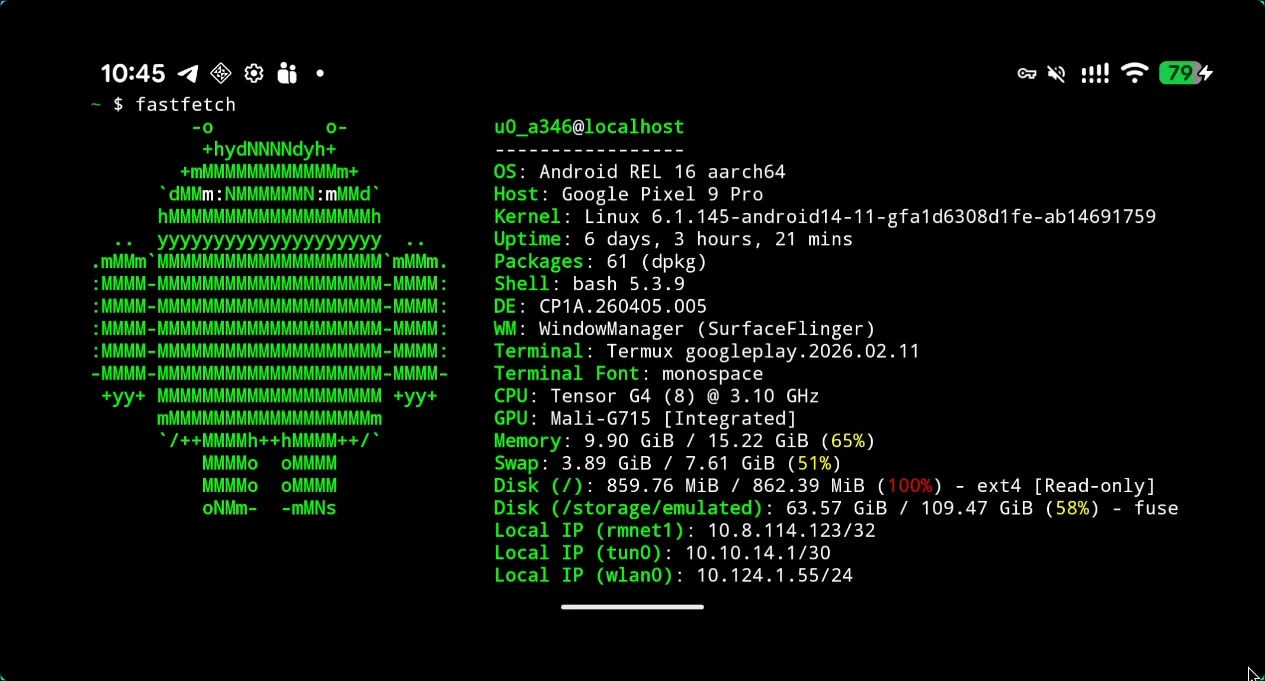
The above screen is captured from ArchLinux Desktop
Managing an Android device doesn’t have to mean clunky VNC setups or bloated third-party software. For Arch Linux users on Hyprland, the most efficient “Unix-way” to handle mobile management is through lightweight, high-performance tools that integrate directly with your terminal and compositor. This guide covers how to use scrcpy for screen mirroring, ADB for command-line control, and Waydroid for native app execution.
The Unix Philosophy: scrcpy
While VNC is a generic protocol, scrcpy is a specialized tool that uses the Android Debug Bridge (ADB) to mirror your screen with near-zero latency. It requires no app installation on the phone and handles Wayland input perfectly.
Installation and Setup
First, install the necessary tools from the Arch repositories:
sudo pacman -S scrcpy android-toolsPrepare your Android device:
- Enable Developer Options by tapping “Build Number” 7 times.
- Toggle on USB Debugging.
- Plug the device in and authorize the connection.
Launching the Mirror
Run the following in your terminal to start the session:
scrcpyFor a wireless connection, initialize TCP mode while plugged in, then connect over your local network:
adb tcpip 5555
adb connect <phone_ip>:5555
scrcpy
From command line:
[jeff@rog ~]$ scrcpy
scrcpy 3.3.4 <https://github.com/Genymobile/scrcpy>
INFO: ADB device found:
INFO:     -->   (usb)  4B231FDAP001SN                  device  Pixel_9_Pro
/usr/share/scrcpy/scrcpy-server: 1 file pushed, 0 skipped. 130.8 MB/s (90980 bytes in 0.001s)
[server] INFO: Device: [Google] google Pixel 9 Pro (Android 16)
INFO: Renderer: opengl
INFO: OpenGL version: 4.6 (Compatibility Profile) Mesa 26.0.6-arch1.1
INFO: Trilinear filtering enabled
INFO: Texture: 960x2136
Direct Management via ADB
If you prefer the command line over a GUI, ADB (Android Debug Bridge) allows you to treat your phone like a remote server. This is the ultimate “Unix-way” to manage files and system settings.
Common Commands
- Access the phone shell:
adb shell - Send files:
adb push <local_path> <remote_path> - Get files:
adb pull <remote_path> <local_path> - Install packages:
adb install <app_name.apk>
Native Integration: Waydroid
For those who want Android apps to live directly inside their Hyprland workspace as native windows, Waydroid is the premier solution. It runs a full Android system in a container (LXC) for maximum performance.
Available via the AUR
yay -S waydroidStorage and Files
To make your phone appear as a standard drive in your file manager (like Thunar or Dolphin) under Hyprland, use udiskie to handle automounting.
Add this to your hyprland.conf
exec-once = udiskie &References
- Arch Wiki: Android Debug Bridge
- Scrcpy GitHub Repository
- Waydroid Project Documentation
- Arch Wiki: Hyprland